2026-06-12
AI Banner Character Animation Workflow for Brand Homepages
Upgrade a static webpage banner with brand character interactions, AI image fusion, and image-to-video reveal animation.
Try this workflow in Naviya
Start from a finished image when the subject, style, or composition should stay stable.
Animate a still image
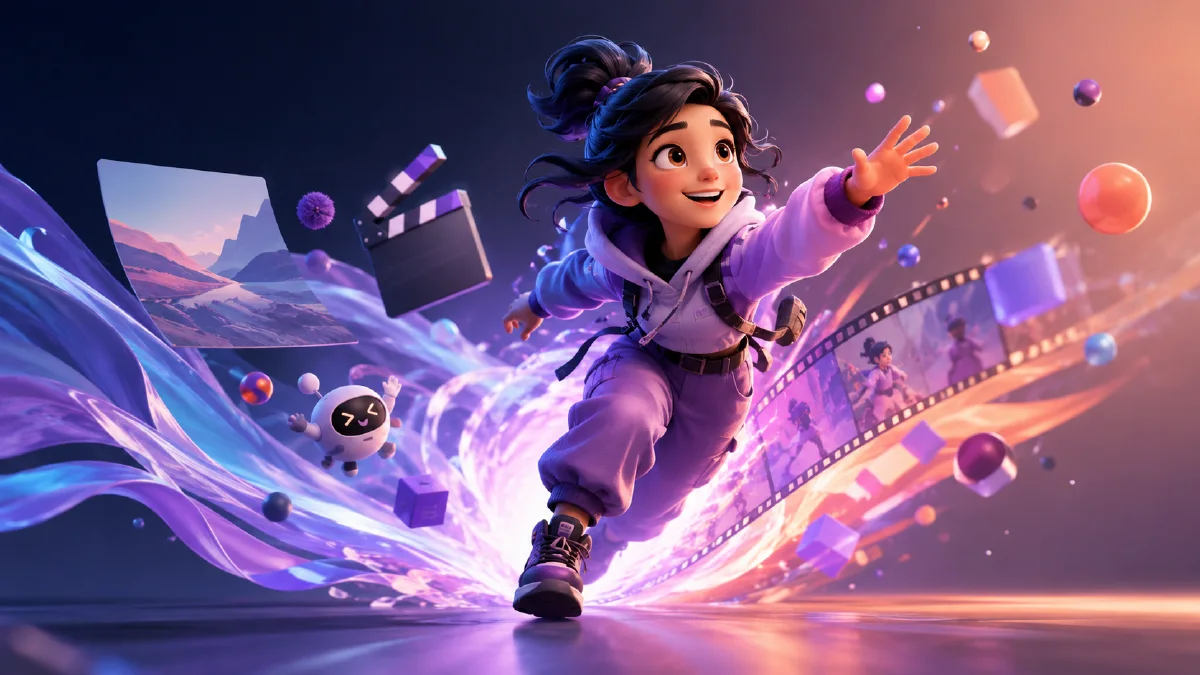
An AI banner character animation workflow upgrades a static homepage visual by adding brand character interaction and a short reveal motion. Instead of a flat symbol or abstract background, the banner becomes a small world: the character reacts, plays, points, jumps, or guides the viewer's eye toward the product or call to action.
This is useful for product launches, creator tools, apps, games, learning platforms, and playful ecommerce brands. The workflow has three stages: create character pose variants, fuse the character into the banner image, then animate the final still into a short hero video.
Use AI Image Generator for character poses and fused banner stills, Image to Video for reveal animation, and Reference to Video when the character must stay consistent. For prompt control, see reference image prompting guide, AI composition prompts guide, AI video camera movement prompts, and manga style character visual workflow.
Definition
A banner character animation is a short visual loop or reveal where a brand character appears inside a website hero or opening screen. It can be subtle, such as a character waving next to the headline, or more active, such as multiple poses interacting with a graphic symbol.
The best version keeps the banner functional. The character should improve attention and brand memory without blocking headline, button, or product visibility.
Step 1: Prepare the banner base
Start with the existing banner image or layout direction. Identify:
- Main visual object or symbol.
- Headline area.
- Button area.
- Empty spaces.
- Safe crop for desktop and mobile.
- Brand colors.
Do not place characters randomly. Decide where interaction helps. A character can sit on a line, hold a symbol, peek from behind a product, or guide attention toward the call to action.
Step 2: Generate character pose variants
Create several poses with the same character design. Focus on interaction, not only expression.
Pose prompt:
Create a brand character pose variant.
Character: [describe the mascot or character design].
Pose: [jumping, waving, pointing, leaning, holding a symbol, peeking].
Expression: friendly, energetic, curious.
Style: match the existing brand illustration style, clean edges, web hero quality.
Background: transparent or plain neutral background.
Constraints: preserve character identity, no extra characters, no fake text.
Generate at least six poses. Choose three that read clearly at small size.
Character interaction patterns
Useful banner interactions include:
| Pattern | How it works |
|---|---|
| Guide | Character points toward the headline or button |
| Holder | Character holds the main symbol or product element |
| Peek | Character appears from behind the graphic, adding surprise |
| Playground | Multiple poses interact with a repeated brand shape |
| Reveal | Character arrives during the animation and completes the composition |
Choose one pattern, not all of them. A homepage banner must remain easy to read. If the interaction is clever but the headline becomes harder to see, simplify the character placement.
Step 3: Fuse character and banner
Now combine the selected character pose with the banner. The prompt should explain where the character belongs and what it is doing.
Fusion prompt:
Create a homepage hero banner image by integrating the brand character into the existing banner composition.
Banner role: website opening visual.
Character placement: [specific location].
Interaction: [character touches, holds, jumps around, or points toward the main symbol].
Style match: preserve the banner color palette, lighting, perspective, and graphic language.
Layout: keep headline and button areas clean.
Constraints: no fake readable text, no clutter, no covering primary CTA area, character identity remains consistent.
Expect to generate several versions. Image fusion often needs selection. Look for the frame where the character feels naturally placed instead of pasted on.
Step 4: Create a reveal animation
A good banner animation is short and loopable. One strong idea is a white or clean opening frame that reveals the full banner. Another is a subtle character entrance.
Reveal prompt:
Animate this homepage banner into a 4 second hero reveal.
Camera: locked banner composition.
Motion: start from a clean bright frame, then the character and graphic elements slide and fade into the final layout.
Character motion: small bounce and wave, friendly and polished.
Style: smooth web hero animation, premium, not chaotic.
Constraints: preserve layout, keep headline and CTA area clear, no new text.
For a loop:
Create a subtle looping banner animation.
Motion: character blinks and shifts slightly, background lines move gently, main symbol glows softly.
Constraints: no layout shift, no distracting movement, no text changes.
Step 5: Review as a webpage asset
Banner animation must serve the page. Check:
- Does the first frame look good before the video loads?
- Is the main message area clear?
- Does the motion distract from navigation or CTA?
- Does the crop work on mobile?
- Can the animation loop without a visible jump?
- Is the file format suitable for page performance?
If the animation is too active, reduce it to character blink, small bounce, or gentle background movement.
Production review criteria
Before exporting the banner, review it like a working homepage asset rather than a standalone animation. The first frame should already feel intentional because browsers, bandwidth, and autoplay behavior can all expose the still frame before motion begins. Check whether the character's gaze, hand, or body angle sends attention toward the product message instead of pulling attention away from it.
Use a three-pass review:
- Layout pass: hide the animation controls and look only at spacing. The character should not compete with navigation, pricing, sign-up buttons, or mobile menu areas.
- Brand pass: compare the character against the rest of the site's visual system. If the banner uses soft shadows and dark violet accents, the character should not suddenly become glossy, cartoonish, or over-saturated.
- Motion pass: watch the loop three times in a row. If you notice the movement more than the message, simplify the animation.
Common fixes are small. Move the character ten percent farther from the headline. Reduce the bounce. Ask for a locked camera. Replace an active arm wave with a blink, head tilt, or tiny prop movement. The goal is not to make the banner quiet; it is to make the motion useful. A good character animation tells visitors where they are, what kind of product world they entered, and why the page feels memorable within the first few seconds.
Try it in Naviya
Use AI Image Generator to create character poses and fuse the best pose into the banner. Then animate the final still with Image to Video. If the character needs to appear in several banners, use Reference to Video to keep it consistent.
Banner workflow checklist
| Step | Output |
|---|---|
| Banner audit | Clear character placement plan |
| Pose generation | Three usable character poses |
| Fusion | One final hero still |
| Animation | Four second reveal or subtle loop |
| QA | Desktop and mobile-safe composition |
Keep an unanimated still version as the fallback hero image. It should communicate the same character idea without relying on motion, because some visitors will see the static frame before the video loads.
The strongest banner character animations feel intentional. The character is not decoration. It helps the viewer understand the brand world faster, adds memorability, and makes the homepage feel alive without sacrificing clarity.