2026-06-12
AI Rotoscope Doodle Video Workflow for Hand-Drawn Effects
Create AI rotoscope doodle effects by splitting video into frames, batch-processing marker-style drawings, and recombining the sequence into a finished clip.
Try this workflow in Naviya
Use the guide to shape a still image, then keep it as a first frame or campaign asset.
Open the studio
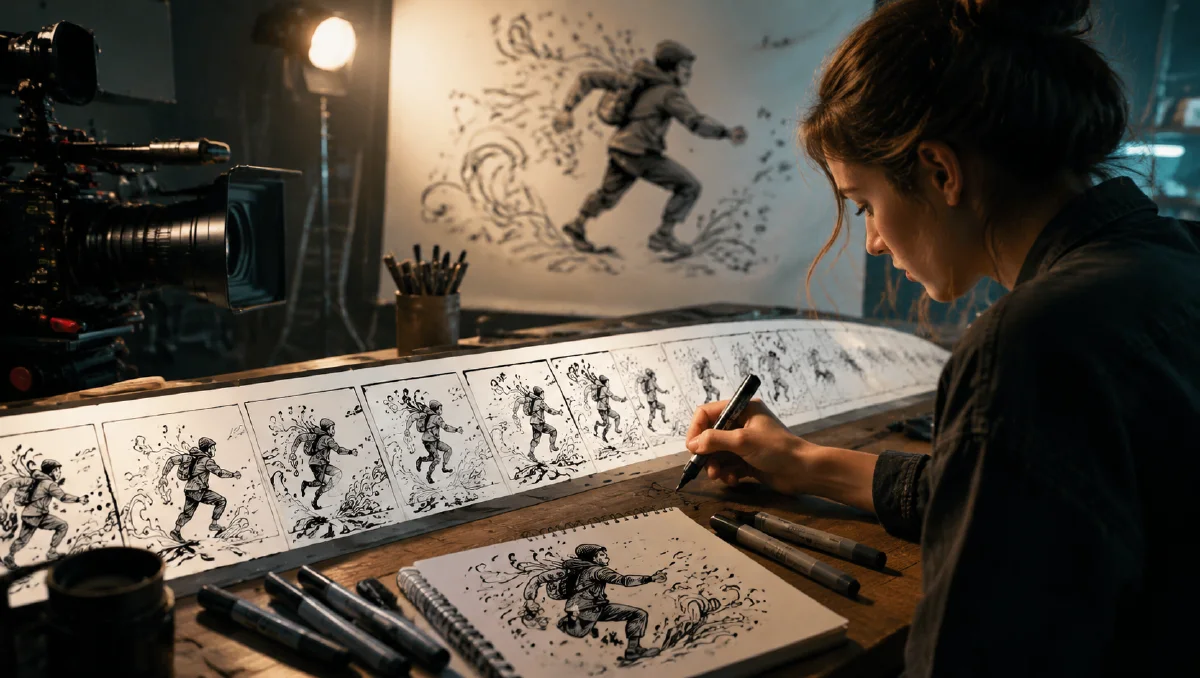
Rotoscope doodle effects usually require drawing over video frame by frame. AI changes the labor model. Instead of hand-drawing every frame, you can split a short video into a frame sequence, apply a controlled doodle prompt to each frame, and recombine the images into a finished video.
This workflow is useful for music clips, social edits, creator intros, product teasers, and animated overlays that need to feel physically drawn rather than digitally pasted on. Use Naviya AI Image Generator for frame treatment, AI Video Generator for final motion ideas, and Image to Video when you want to test a single treated frame before processing a whole sequence. For prompt structure, read AI video prompt guide, AI composition prompts guide, and reuse failed AI images.
What is AI rotoscope doodling?
AI rotoscope doodling is a frame-based workflow where a video is converted into still images, each still is transformed with the same drawing instruction, and the transformed frames are assembled back into video. The effect works best when the prompt describes physical paint or marker behavior, not a generic overlay.
A good doodle looks attached to the object. It should respect surface curvature, show stroke thickness, and contain imperfect human energy. A weak doodle floats above the image like a sticker.
Step 1: split the video into frames
Start with a short clip. The workflow is easiest when the subject is clear and the camera does not move too wildly. Use a frame extraction tool and export the video as JPG frames.
Recommended settings:
| Setting | Recommendation |
|---|---|
| Clip length | 3 to 6 seconds |
| FPS for processing | 5 FPS for a stylized, manageable sequence |
| Format | JPG or PNG sequence |
| Subject | one main object or area to draw over |
| Camera | stable or moderately moving |
Five frames per second is enough for many doodle effects because the hand-drawn look can tolerate a slightly choppy cadence. Higher frame rates create smoother motion but require more image processing and more consistency control.
Step 2: write the doodle as physical paint
The prompt should say what is being drawn, where it attaches, and how the material behaves. Avoid abstract phrases such as "cool doodle effect." Instead, describe marker strokes, opacity, gloss, curvature, and endpoints.
Example prompt for a traffic light frame:
Add thick white doodle marker lines over the green traffic light.
Create radial white strokes spreading outward from the green signal
as the center. Add one thick white curved doodle line below the traffic
light to form a simple smiling face.

Marker strokes show real paint thickness and opacity.
Slight gloss and wet look on the paint surface.
Paint respects the surface it is on, with slight curvature on rounded
lamp covers. Drips appear only at natural stroke endpoints,
not randomly. Overall effect: physically painted by a person on the
actual traffic light, not digitally overlaid.
Negative prompt:
digital illustration, flat vector lines, clean perfect strokes,
yellow or colored paint, glow effect, lens flare, neon, spray paint,
sticker overlay, altered background, regenerated traffic light,
smooth perfect symmetrical rays, floating strokes without surface
contact, chalk texture, airbrushed look
The negative prompt matters because many models default to clean graphic overlays. Rotoscope doodles should feel imperfect, material, and attached.
Step 3: batch process the frame sequence
Apply the same prompt to every frame. If the tool supports batch upload, process the entire sequence together. If not, run the frames in small groups and keep prompt wording identical.
Batch consistency checklist:
- Use the same prompt for every frame.
- Keep the drawing location simple.
- Avoid changing color or doodle style halfway through.
- Reject frames where the background is regenerated.
- Reject frames where the doodle detaches from the object.
- Save outputs with sortable filenames so the sequence order remains intact.
If a few frames fail, regenerate only those frames. Do not change the whole prompt unless the same issue appears across the full sequence.
Step 4: recombine the sequence
Import the processed frames into an editor as an image sequence. Set the same FPS you used when planning the effect. Then export the final video.
If the result feels too choppy, you have three options:
| Problem | Fix |
|---|---|
| Doodle flickers | reduce detail, simplify the shape, process fewer objects |
| Motion feels choppy | increase frame count or use optical flow carefully |
| Background changes | strengthen "preserve the original frame" constraints |
| Lines float | add surface-contact and curvature language |
| Doodle too clean | add marker thickness, wet gloss, imperfect endpoints |
Prompt patterns for other doodles
For product highlights:
Add hand-drawn white marker arrows pointing to the product texture.
The lines sit physically on the image surface with uneven pressure,
slight marker opacity variation, and natural rounded endpoints.
Preserve product shape and background.
For fashion clips:
Add playful white doodle stars and motion strokes around the jacket
edges. The doodles look hand-drawn with thick paint marker texture,
slight unevenness, and real opacity. Keep the model, outfit, and
background unchanged.
For sports edits:
Add energetic hand-drawn speed lines trailing behind the moving subject.
Lines are white paint marker strokes with variable thickness, attached
to the direction of motion, not floating as digital graphics.
Preserve the original scene and subject.
Try it in Naviya
Test the doodle style on one frame in Naviya AI Image Generator. Once the paint behavior looks physical, process the rest of the frame sequence and assemble the result. Use AI Video Generator for adjacent title cards or transition clips that match the final effect.
Frame-rate and style decisions
The frame rate is a creative choice. Five frames per second creates a handmade stutter that often suits doodle overlays, especially for music edits and playful social clips. Eight to twelve frames per second can feel smoother while still keeping a drawn cadence. Full frame-rate processing is possible, but it increases cost, review time, and flicker risk.
Style consistency matters more than perfect smoothness. If the marker stroke changes thickness every frame, the viewer notices. If the motion is slightly stepped but the paint feels attached and consistent, the effect still reads as intentional rotoscope style. For commercial use, process a short test section first, review it in motion, then commit to the full clip only after the line behavior is stable.
Review the test both paused and playing. A still frame can look excellent while the sequence flickers, and a slightly imperfect frame can disappear naturally in motion. Judge the effect as video before spending time repairing every tiny still-image flaw. Also check the first and last processed frames side by side; if the doodle style has drifted by the end, shorten the batch or simplify the prompt.
When this workflow works best
AI rotoscope doodles work best on short clips with one clear visual idea. A traffic light smile, a jacket outline, a product arrow, or a burst of speed lines will usually look stronger than covering the whole frame with complex drawings. The viewer should understand the doodle instantly.
The craft is in restraint. Split the video, draw with a material prompt, keep the sequence consistent, and recombine only after the frames look physically believable. Small choices matter.