2026-06-12
Image to Video AI Workflow: Turn a Still Image into a Better Clip
Learn a repeatable image to video AI workflow for portraits, anime scenes, product shots, and cinematic creator clips.
Try this workflow in Naviya
Start from a finished image when the subject, style, or composition should stay stable.
Animate a still image
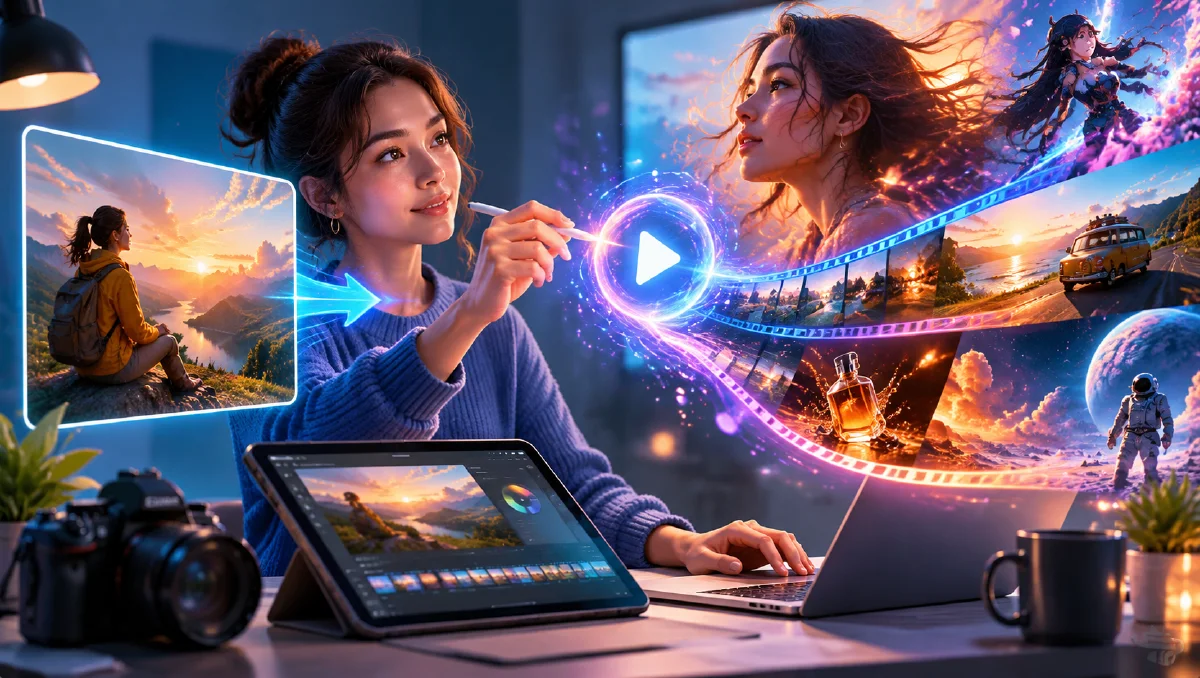
Image to video works best when the still image already contains the important creative decisions. The AI model can add motion, camera direction, atmosphere, and timing, but it should not have to invent the identity, composition, and style from scratch.
Use this workflow when you care about consistency.
If you want copy-ready examples after reading the workflow, use the image to video prompts guide. For product-specific clips, use the product image to video guide. For anime clips, use the anime image to video guide.
1. Start with a strong still image
The first frame should answer four questions:
- Who or what is the subject?
- What is the visual style?
- What is the camera distance?
- What should stay consistent during motion?
If the face, outfit, object shape, or product detail is weak in the still image, the video model will usually make the weakness worse. Generate or edit the still first, then animate it.
2. Pick one motion goal
Short AI videos are not full scenes. They are usually one strong motion idea.
Good motion goals:
- Slow camera push toward a character.
- Hair and fabric move in a light breeze.
- Product rotates on a dark studio surface.
- Neon signs flicker behind a walking subject.
- A poster character turns toward camera.
Weak motion goals:
- The character runs, jumps, fights, smiles, transforms, and flies away.
- A product explodes, reforms, changes color, and becomes a different object.
- The camera does three movements in five seconds.
One clear motion goal gives the model less room to drift.
3. Describe camera and subject separately
A strong prompt separates the camera from the subject.
Use this structure:
Subject: a close portrait of a silver-haired anime character in a black jacket.
Camera: slow push-in, steady lens, shallow depth of field.
Motion: hair moves gently, eyes blink once, jacket fabric shifts subtly.
Atmosphere: violet rim light, soft particles, dark studio background.
Constraints: preserve face, outfit, and composition.
This is better than one long sentence because each part has a job.
4. Keep motion believable
Most image to video failures come from asking for too much physical change. If the input image shows a person standing still, do not ask for a complex dance. If it shows a product from the front, do not ask for a full back view.
Better motion:
- Push in.
- Slight turn.
- Blink.
- Cloth movement.
- Light sweep.
- Background parallax.
- Smoke, rain, glow, or particles.
These motions add life without breaking identity.
5. Choose the model by failure mode
If the output looks beautiful but ignores the reference, use a model or setting with stronger reference control.
If the output follows the subject but lacks energy, try a model known for stronger motion.
If the output is close but not polished, keep the model and adjust the prompt. Do not switch too early.
6. Save reusable prompt blocks
Once a shot works, save the useful blocks:
- Camera movement.
- Lighting phrase.
- Motion phrase.
- Consistency constraint.
- Negative direction, if the tool supports it.
Reusable blocks make the next clip faster and more consistent.
Example prompt
Animate this image into a cinematic 6 second clip.
Camera: slow push-in from a medium portrait to a tighter close-up.
Subject motion: subtle head turn toward camera, natural blink, hair moving in a light breeze.
Atmosphere: soft violet rim light, faint floating particles, dark studio background.
Keep the same face, outfit, color palette, and composition. Avoid extra limbs, warped hands, and sudden scene changes.
When to use text to video instead
Use text to video when the image is not important, the subject can be invented, or you need a wider scene that does not depend on exact identity. Use image to video when you already have a character, product, poster, or visual direction worth preserving.
In practice, many creators use both:
- Text or template to generate a still.
- Image editing to refine it.
- Image to video to animate it.
- Another model pass for variations.
That is the core Naviya workflow: make the image good first, then make it move.
Workflow by asset type
| Asset | Best first move | Video motion to try |
|---|---|---|
| Portrait | protect face, outfit, and crop | blink, small head turn, hair movement |
| Product photo | protect shape, material, and label area | light sweep, reflection, slow push-in |
| Anime still | protect line style, eye color, outfit | hair, fabric, rain, background parallax |
| Poster image | protect layout and typography | locked shot, subtle particles, gentle zoom |
| Social first frame | protect safe space and hook clarity | one large first-second motion |
If the result fails, use the image to video troubleshooting guide before switching models. If the first frame is the weak point, create a stronger still in Naviya AI Image Generator first.
Publishing checklist
Before using the clip, check:
- The first frame still communicates the idea.
- The protected subject did not drift.
- The camera move supports the format.
- Motion is visible at phone size.
- Captions or platform UI will not cover important details.
- The ending can be trimmed or looped cleanly.
Troubleshoot before changing models
When an image-to-video result fails, avoid changing every setting at once. First decide whether the failure is subject drift, camera confusion, motion overload, or weak first-frame design. Subject drift means the product, face, outfit, or artwork changed. Camera confusion means the clip moves in a way you did not ask for. Motion overload means the action is too complex for the image. Weak first-frame design means the still was not clear enough to animate well.
Fix subject drift with stricter constraints and less motion. Fix camera confusion by using one camera verb: push in, pan, tilt, locked shot, or slight orbit. Fix motion overload by splitting the idea into two clips. Fix a weak first frame by returning to still generation, improving composition, and then animating again.
Use a simple test log. Record the starting image, prompt, motion goal, and failure reason for each pass. After five attempts, patterns become obvious. You may find that the product works best with light sweeps, the character works best with locked close-ups, or the ad needs a stronger still before video can succeed.
Format matters too. A 9:16 social hook needs a larger subject and more vertical safe space than a 16:9 banner. A square product loop needs the object centered and stable. A cinematic horizontal clip can tolerate more atmosphere. Decide the crop before generating, because changing the aspect ratio after motion can cut off the subject or hide the action.
When creating multiple versions, keep the first frame identical for the first test batch. Change only camera or motion. Once the winning motion is clear, test alternate first frames. This separates composition decisions from movement decisions and prevents random iteration.
For client or team review, export a contact sheet of still frame, prompt, and short result. Reviewers can then compare the actual cause of success or failure. A clip that looks weak may simply need a calmer camera, while another may need a completely stronger first image. Clear comparison keeps feedback practical.
Try it in Naviya
Use Naviya Image to Video for first-frame animation, or use Reference to Video when the same person, product, or style must stay consistent across multiple clips.